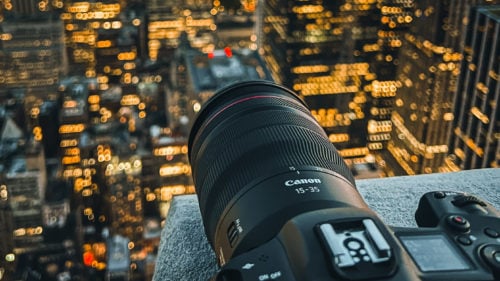
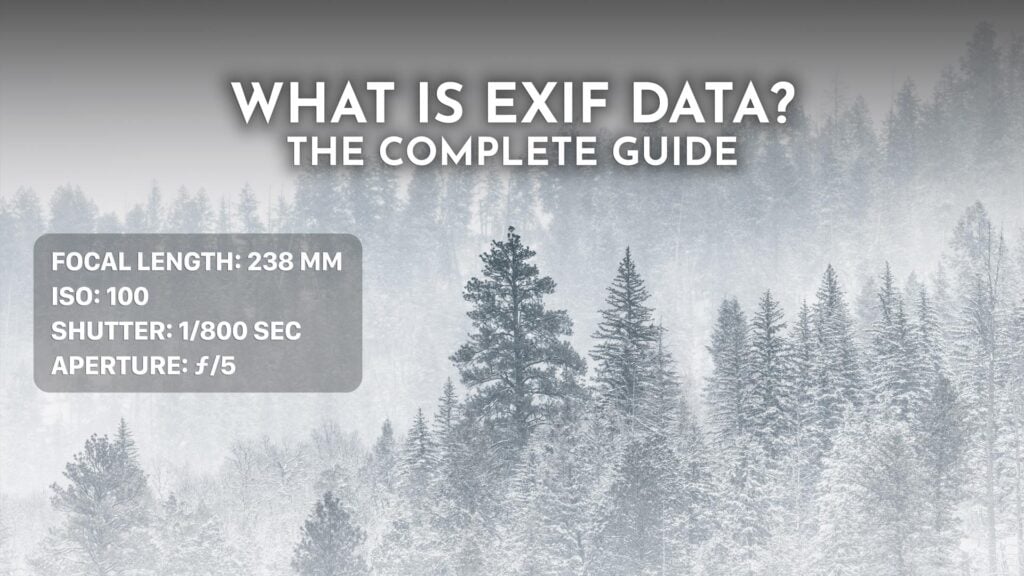
Every digital photo you take stores hidden data about how it was shot. This metadata is called EXIF data, and it records everything from your camera settings to the exact GPS location where you pressed the shutter. Most photographers never look at it, but once you start, it changes how you think about your images.
This guide covers what EXIF data is, what’s actually stored inside it, how to view it on every major device, how to remove it for privacy, and how to use it to get better at photography. If you want to inspect one of your own photos as you read, my free Online EXIF Viewer opens any image’s EXIF data in your browser, and its EXIF remover strips that data back out when you need a clean copy to share.
Table of contents
- What is EXIF Data?
- A Quick History of EXIF
- What’s Actually Stored in EXIF Data
- EXIF vs IPTC vs XMP
- EXIF Data Across File Formats
- How to View EXIF Data
- How to Remove EXIF Data
- EXIF Data on Social Media
- The Privacy Side of EXIF Data
- Using EXIF Data to Improve Your Photography
- EXIF Data and AI-Generated Images
- EXIF Data FAQ
- Conclusion
What is EXIF Data?
EXIF stands for Exchangeable Image File Format. It’s a metadata standard that cameras and smartphones automatically embed into image files, recording how the photo was taken. Every JPEG, HEIC, RAW, or TIFF file straight off a camera carries a chunk of EXIF data alongside the actual pixels.
If you’ve ever wondered what shutter speed and ISO a photographer used for a particular shot, the answer is almost always sitting in the EXIF data. Same goes for the lens, the focal length, whether the flash fired, and (often) the GPS coordinates of where the photo was taken.
EXIF data is invisible by default. You won’t see it unless you open it with a viewer (your operating system, a photo editor, or a dedicated EXIF tool). That invisibility is exactly why it matters for both photographers (it’s a free learning tool) and for privacy (it can quietly leak location and timing data).
A Quick History of EXIF
EXIF was created in 1995 by the Japan Electronic Industries Development Association (JEIDA) to give early digital cameras a standard way of embedding shooting information into image files. The standard is now maintained by the Camera and Imaging Products Association (CIPA), which most of the major camera makers belong to.
The latest version is EXIF 3.0, published in May 2023, which added UTF-8 support so metadata fields can hold international character sets like Japanese, Arabic, and Chinese. Most cameras today still write the older EXIF 2.32 (2019), which is why the same basic fields show up whether you’re reading a 2005 file or a brand-new one.
What’s Actually Stored in EXIF Data
EXIF data is organized into tagged fields. Here are the categories you’ll find in almost every photo, along with the actual tag names you’ll see when you open a file in viewers like ExifTool.
Camera Information
- Make and Model: Camera manufacturer and body (Canon EOS R5, iPhone 15 Pro, Sony A7 IV).
- LensMake and LensModel: The lens, including third-party brands.
- Software: Firmware version or editing software (a give-away for whether a photo has been opened in Lightroom).
- SerialNumber: The camera body’s serial number on most pro and prosumer bodies.
Exposure Settings
- FNumber: The aperture (f/2.8, f/8, etc.).
- ExposureTime: Shutter speed in seconds (1/250, 1/30, 30s for long exposures).
- ISOSpeedRatings: The ISO sensitivity at the time of capture.
- ExposureBiasValue: Exposure compensation in stops.
- MeteringMode: Matrix, center-weighted, spot, etc.
- Flash: Whether the flash fired and in what mode.
- WhiteBalance: Auto or a manual preset.
Lens and Focus
- FocalLength: The lens focal length used (24mm, 70mm, 200mm).
- FocalLengthIn35mmFilm: The 35mm equivalent, useful for crop-sensor and phone cameras.
- SubjectDistance: Estimated distance to the subject in meters (on lenses that report it).
Date, Time, and Location
- DateTimeOriginal: When the photo was actually shot.
- DateTimeDigitized: When the file was written (usually the same).
- OffsetTime: Time zone offset, on newer cameras.
- GPSLatitude and GPSLongitude: Coordinates of where the photo was taken.
- GPSAltitude: Elevation above or below sea level.
- GPSTimeStamp: The GPS-reported time, often more accurate than the camera clock.
Image Properties
- ImageWidth / ImageLength: Pixel dimensions.
- Orientation: Tells viewers which way to rotate the image (this is why portrait photos display correctly on a desktop without re-saving).
- XResolution / YResolution: DPI for print sizing.
- ColorSpace: The color space the photo was captured in, usually sRGB. Wide-gamut shots from newer cameras and phones get flagged here too.
Optional Author Info
- Artist: The photographer name, if you’ve set it in your camera.
- Copyright: A copyright notice you’ve configured.
- UserComment: A free-form comment field.
EXIF vs IPTC vs XMP
EXIF is one of three metadata standards you’ll see attached to images. They overlap but serve different purposes.
- EXIF: Written automatically by the camera. Technical shooting info: exposure, lens, GPS, date.
- IPTC: International Press Telecommunications Council standard from 1991, used by news agencies. Editorial info: caption, headline, keywords, location name, byline, credit.
- XMP: Adobe’s Extensible Metadata Platform, introduced in 2001. An XML-based wrapper that can store EXIF, IPTC, and Adobe-specific edit history all in one place. Lightroom develop settings live in XMP sidecar files.
In a typical JPEG from a press photographer, all three coexist: EXIF says it was shot at 1/200, f/4, ISO 800 on a Canon R5; IPTC says the caption, location name, and credit; XMP carries the Lightroom edits and rating. Most photo editing apps let you view and edit all three.
EXIF Data Across File Formats
EXIF support varies by file format. Here’s where it lives and where it doesn’t:
- JPEG and JPG: Full EXIF support. The most common case.
- HEIC and HEIF: Apple’s default photo format since iOS 11 in 2017. Full EXIF support.
- RAW: Proprietary formats like Canon’s CR3, Nikon’s NEF, Sony’s ARW, and Fujifilm’s RAF all contain extensive EXIF and maker-specific notes.
- DNG: Adobe’s open RAW format. Full EXIF, plus XMP.
- TIFF: Common in print and archive workflows. Full EXIF support.
- WebP: Google’s web format supports EXIF, though many encoders strip it by default.
- PNG: PNG has its own tEXt and eXIf chunks, but most images saved as PNG (especially screenshots) have no EXIF data at all.
Worth noting: when you open a RAW file in Lightroom and export as JPEG, the EXIF data carries forward by default. The lens you used, the original capture time, the GPS coordinates if your camera had them. That’s often a good thing, but it’s the reason a JPEG sent to a friend can still leak the GPS coordinates of your home.
How to View EXIF Data
Every modern operating system has a built-in way to look at EXIF data. Here’s how to do it on each platform.
View EXIF Data on iPhone
Apple added a built-in EXIF viewer in iOS 15 (2021), and it’s the easiest method on iPhone.
- Open the Photos app and select an image.
- Tap the i (info) button at the bottom, or swipe up on the image.
- You’ll see the camera model, lens, exposure settings, file size, and a location map if GPS was enabled.
- For the full tag list, share the photo to a viewer app like Metapho or Exif Viewer.
View EXIF Data on Android
Google Photos shows EXIF data on Android.
- Open the image in Google Photos.
- Swipe up on the image or tap the three-dot menu and choose Details.
- You’ll see camera model, lens, settings (f-stop, shutter speed, ISO, focal length), file size, and a location map.
- For full EXIF including every tag, install a dedicated app like Photo Exif Editor or use a browser-based viewer.
View EXIF Data on macOS
The quickest look is Finder itself. Select the file, press Cmd+I to open Get Info, and expand More Info for dimensions, camera and lens, and the main exposure settings.
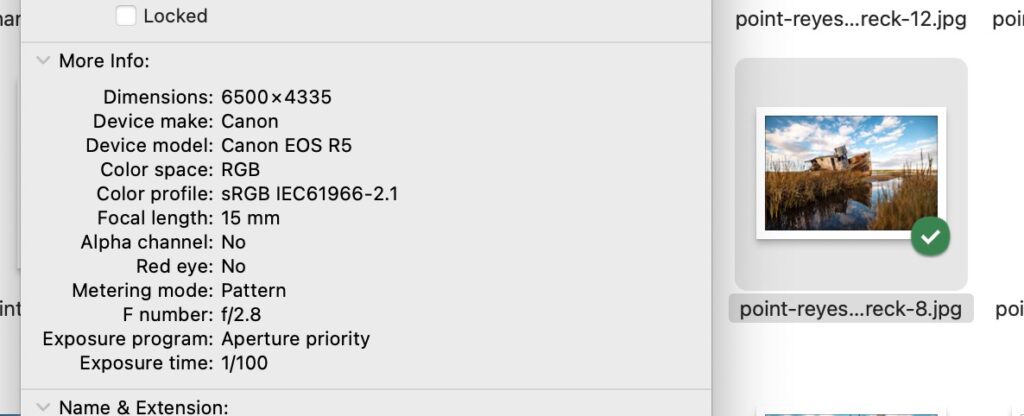
For a few more fields, including a GPS map, open it in Preview:
- Open the image in Preview.
- Press Cmd+I or go to Tools > Show Inspector.
- Click the i tab, then the EXIF sub-tab.
- For GPS data, click the GPS sub-tab. macOS shows a small map.
Preview only surfaces a subset of the EXIF tags. For the full list, drop the file into a dedicated EXIF viewer or use ExifTool from Terminal.
View EXIF Data on Windows
- Right-click the image file in File Explorer.
- Choose Properties.
- Click the Details tab.
- Scroll through the camera, settings, and GPS sections.
View EXIF Data in Lightroom and Photoshop
Adobe Lightroom shows EXIF in the Metadata panel on the right side of the Library module. Switch the dropdown to “EXIF and IPTC” for the full view. Lightroom can also filter your library by EXIF: pull up the Library Filter bar and you can sort by lens, camera body, focal length, or ISO. This is one of the most powerful uses of EXIF and it’s why photographers use Lightroom over the Files app.
In Photoshop, go to File > File Info and check the Camera Data tab.
View EXIF Data in a Browser
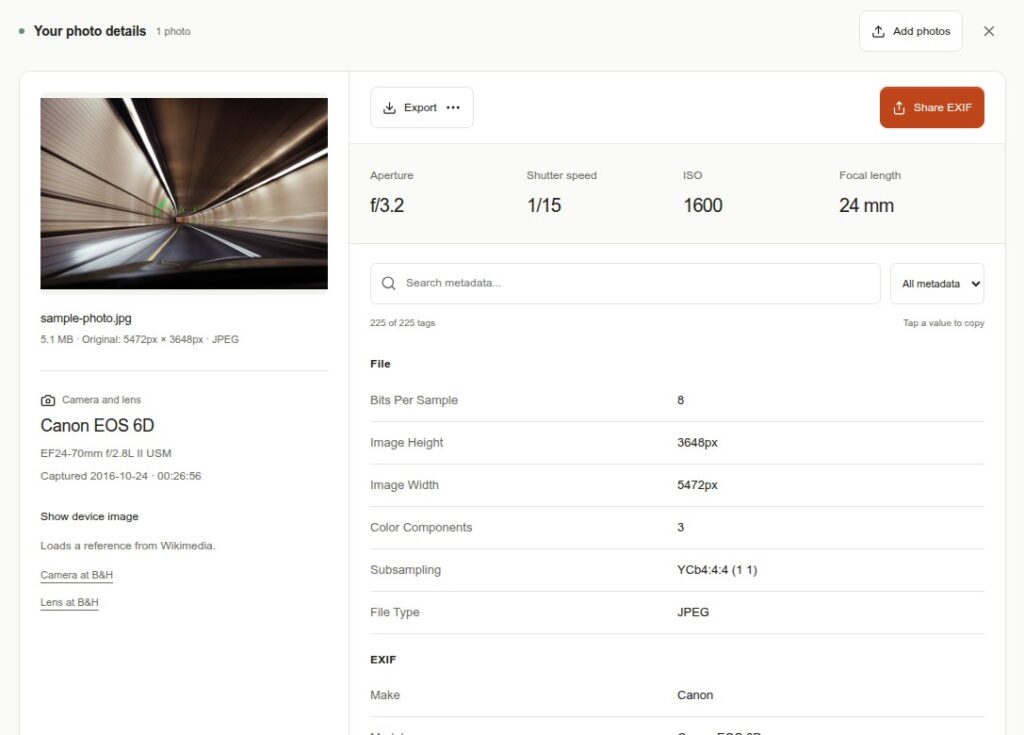
For the full breakdown of every tag in a photo, browser-based viewers are usually the fastest option. I built Online EXIF Viewer specifically for this. Drop in a photo and see every EXIF, IPTC, and XMP field at once, plus a GPS map if location data is present. It reads JPEG, HEIC, PNG, TIFF, WebP, AVIF, and GIF files up to 50 MB, and you can search the tag list, open several photos at once to compare settings, or export the whole thing as Markdown, JSON, or CSV.
Reading happens entirely in your browser, so the image itself is never uploaded. The one exception is the optional share link, which publishes the tags you pick to a public URL, and even there you can hide GPS coordinates and camera serial numbers before creating it.
How to Remove EXIF Data
If you’re sharing a photo publicly (selling on Facebook Marketplace, posting on a forum, sending to someone you don’t fully trust), stripping EXIF data is the safer default. Here’s how to do it in your browser, and on each platform.
Remove EXIF Data in Your Browser
The fastest option, and the one that works the same on a phone or a laptop, is a browser tool. I added an EXIF remover to Online EXIF Viewer for exactly this. Drop in up to 10 JPEG, PNG, or WebP photos, hit Remove metadata, and download the cleaned copies.
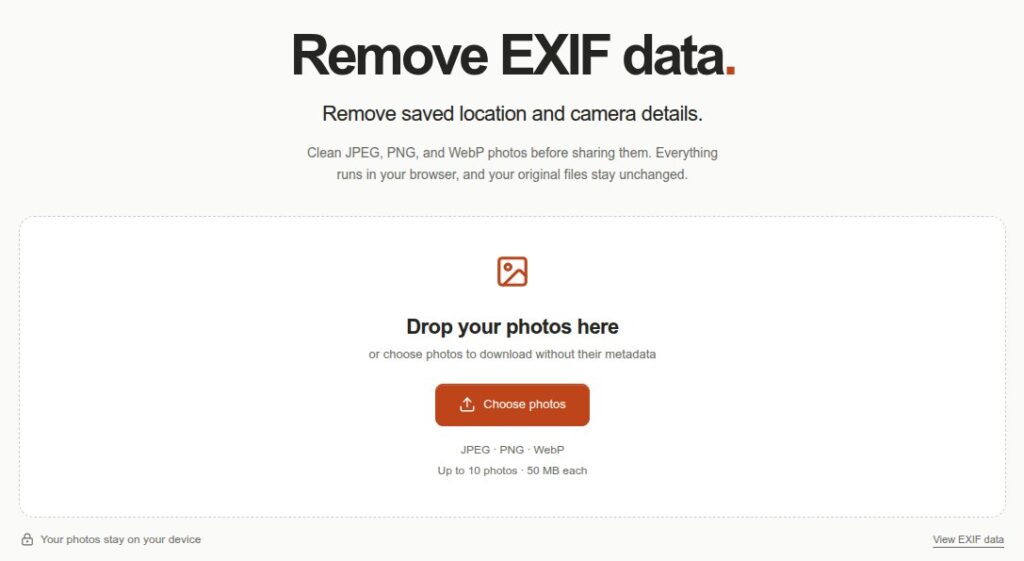
It strips EXIF, XMP, IPTC, GPS coordinates, capture dates, camera serial numbers, comments, and embedded thumbnails. The photo isn’t resized or recompressed, so the image data comes out untouched, and it all happens on your device. Your originals are never uploaded and never overwritten.
Two things worth knowing. Embedded color profiles come out too, so a wide-gamut shot can render slightly differently afterward, and a Keep photo rotation toggle preserves the lone orientation tag so portrait photos don’t come back sideways. HEIC, TIFF, and RAW aren’t supported yet, so use ExifTool or one of the platform methods below for those. To confirm it worked, drop the cleaned file into the viewer and check the tags are gone.
Remove EXIF Data on iPhone
iOS 15 and later let you remove the location from a photo before sharing it, without permanently modifying the original.
- In Photos, open the image and tap the Share button.
- Tap Options at the top of the share sheet.
- Toggle Location off.
- Tap Done and share.
To clear the location from the photo itself, Apple’s documented steps are to open the photo, tap the info button, then tap Adjust Location and No Location. That drops the coordinates but leaves the camera and exposure tags in place. For a full wipe including camera info, use the browser remover above or a free app like Metapho.
Remove EXIF Data on Android
- In Google Photos, open the image and swipe up for details.
- Tap the pencil icon next to the location and choose Remove location.
- This removes location from Google Photos’ display, but the underlying file still contains EXIF. For a hard strip, use Photo Exif Editor or a similar free app from the Play Store.
Remove EXIF Data on macOS
- Open the image in Preview.
- Open the Inspector (Cmd+I).
- Click the GPS tab and use Remove Location Info for GPS only.
- For a full strip, use the free ImageOptim app: drag your photos in, and it removes all EXIF (plus optimizing file size).
Remove EXIF Data on Windows
- Right-click the image and choose Properties.
- Go to the Details tab.
- At the bottom, click Remove Properties and Personal Information.
- Choose Create a copy with all possible properties removed, or check individual fields to keep.
Remove EXIF Data with ExifTool (Command Line)
For batch jobs or scripting, ExifTool is the standard. It runs on macOS, Windows, and Linux.
exiftool image.jpg: View all metadata.exiftool -all= image.jpg: Strip all metadata (creates a backup).exiftool -gps:all= image.jpg: Strip only GPS data.exiftool -all= -overwrite_original *.jpg: Strip everything from every JPEG in a folder without keeping backups.
EXIF Data on Social Media
Most major social platforms strip EXIF data when you upload a photo. That’s actually good news for privacy, but it also means that if someone saves a photo off Instagram or Facebook, they won’t get the original camera settings. Here’s the current behavior across platforms:
- Instagram: Strips all EXIF data on upload, including GPS.
- Facebook: Strips most EXIF including GPS coordinates. Some Make and Model info can remain.
- X (Twitter): Strips EXIF data on upload.
- Reddit: Strips EXIF data on upload.
- TikTok: Strips EXIF data on upload.
- LinkedIn: Strips EXIF data on upload.
- Pinterest: Strips EXIF data on upload.
- WhatsApp: Strips most metadata, including GPS, on send.
- iMessage: Preserves full EXIF data including GPS. Same for AirDrop.
- Email attachments: Preserves full EXIF data.
- Google Drive, Dropbox, iCloud links: Preserves original file with full EXIF.
- Flickr and 500px: Preserve full EXIF (it’s part of the value for photographers).
The takeaway: a photo posted publicly to Instagram is safe. A photo emailed or AirDropped to someone you don’t fully trust can leak your home address through GPS if you took it indoors.
The Privacy Side of EXIF Data
The single most sensitive piece of EXIF data is GPS coordinates. A photo of your dog in the living room can contain coordinates accurate to within a few meters of your couch. There have been a handful of real cases over the years (most famously the 2012 capture of an antivirus founder who was on the run, located via the EXIF of a photo posted to Vice) where EXIF leaks have had serious consequences.
Practical rules I follow:
- If you don’t need GPS in your photos, turn it off in your camera or phone settings.
- If you want GPS for your own organization but not for sharing, leave it on and strip it at share time (the iPhone share-sheet Location toggle is the cleanest workflow).
- For listings (Facebook Marketplace, Craigslist, eBay), strip EXIF before uploading. Even though the platforms re-encode, it’s safer not to depend on that.
- For images you send via email, iMessage, AirDrop, or any direct file transfer, strip EXIF if the recipient doesn’t need it.
Using EXIF Data to Improve Your Photography
EXIF is the closest thing photographers have to a free coach. Every shot you take is auto-logged with the settings used, which makes it one of the most underrated ways to improve your photography. The trick is actually looking at it.
Three habits worth building:
- Compare your hits and misses. Pull up a photo that worked and one that didn’t from the same shoot. Look at the EXIF side by side. Was your shutter speed too slow? Were you wide open at f/1.8 and missed focus? The answers are usually right there.
- Look at other photographers’ EXIF. Sites like Flickr and 500px keep EXIF intact, so when you find a photo you love, check what settings produced it. It’s not a recipe (the light and subject matter most), but it’s a useful starting point for low-light or long-exposure work where the technical numbers are doing real work.
- Filter your own library by lens or focal length. In Lightroom, sort all your saved keepers by FocalLength. If you find that 80% of your favorites were taken at 35mm, you have a real answer for what lens to buy next.
EXIF Data and AI-Generated Images
One newer use for EXIF data is verifying that a photo was actually taken with a real camera. AI-generated images from tools like Midjourney, Stable Diffusion, or ChatGPT image generation usually have no EXIF data at all, or carry a software tag identifying the generator. A photo with a complete EXIF block (camera Make, Model, lens, exposure, GPS, original date) is much more likely to be authentic.
This isn’t bulletproof: EXIF can be faked, and some AI tools now intentionally inject plausible camera metadata to dodge detection. But it’s a strong first signal. Content provenance standards like C2PA (the technology behind Adobe’s Content Credentials) build on the same idea with cryptographically signed manifests embedded into the photo. Leica was first to ship it, with the M11-P signing photos by default, and Sony has since added Content Credentials to several Alpha bodies through firmware. Canon announced its own C2PA-based Authenticity Imaging System for news organizations in May 2026, covering the EOS R1 and R5 Mark II.
Signing at capture is harder than it sounds. Nikon switched on Content Credentials for the Z6III in August 2025, and within days a DPReview forum member showed that the camera’s multiple exposure feature could sign an image it never took, an AI-generated one included. Nikon suspended the service while it worked on a fix. Metadata is evidence, not proof.
EXIF Data FAQ
Does every photo have EXIF data?
Almost every photo straight out of a camera or smartphone does. Photos saved as PNG, screenshots, and many AI-generated images do not. Photos posted to Instagram, Facebook, X, Reddit, or TikTok have their EXIF stripped on upload, so saved-off copies usually have nothing.
Can EXIF data show where I live?
Yes, if GPS was enabled when the photo was taken. The coordinates are typically accurate to within a few meters, which is enough to identify a specific house or apartment. Strip EXIF before sharing photos taken at home with anyone you don’t fully trust.
Does removing EXIF data reduce file size?
Slightly. A typical EXIF block is a few kilobytes, sometimes up to 30 KB on photos with embedded thumbnails. Removing it isn’t a meaningful compression strategy on its own. Tools like ImageOptim that strip EXIF also do real compression, which is where the actual size savings come from.
Does removing EXIF data change how the photo looks?
It shouldn’t. A good remover strips the metadata without resizing or recompressing the image, so the picture itself is untouched. The one visible change can come from dropping the embedded color profile, which occasionally makes a wide-gamut photo render a little differently. Anything that re-saves the file, like a screenshot or a social upload, is what actually costs you quality.
Can I remove EXIF data from HEIC or RAW files?
Browser tools usually handle JPEG, PNG, and WebP only. For HEIC, TIFF, and RAW, ExifTool is the reliable route: exiftool -all= photo.heic. If you’re exporting from Lightroom anyway, the export dialog has a Metadata dropdown that can write out a JPEG with the camera information left off.
Can EXIF data be edited or faked?
Yes. Tools like ExifTool, Lightroom, and most EXIF editor apps let you change any field. Photographers sometimes correct the camera clock after the fact, or update copyright info. The same flexibility means EXIF on its own isn’t proof of when or where a photo was taken. For real provenance, look at C2PA signing.
Why does my screenshot have no EXIF data?
Screenshots are generated by the operating system, not captured through a lens. There’s no shutter speed or aperture to record. The file does carry a creation date and the device name, but most of the typical EXIF fields are empty or absent because they don’t apply.
Is EXIF data the same as metadata?
Photo metadata is the umbrella term. EXIF is one type of metadata, alongside IPTC (editorial info) and XMP (Adobe’s wrapper). When someone says “the photo’s metadata,” they usually mean EXIF data plus any of the others present.
Do iPhone photos have EXIF data?
Yes. iPhones embed full EXIF including GPS (if Location Services is enabled for the Camera app), camera Make and Model (Apple / iPhone 15 Pro, etc.), focal length, lens identifier, exposure settings, and the original date. They also embed Apple-specific maker notes with computational photography info.
Why does EXIF data sometimes show the wrong date?
Two common causes: the camera’s internal clock was never set or drifted, or the camera was reset and the date defaulted to its manufacture year. ExifTool can batch-correct dates with a single command if you know the offset.
Conclusion
EXIF data is one of those things that seems boring until you actually use it. Once you start checking the settings behind your best (and worst) shots, you’ll learn faster than any tutorial can teach you. And once you know how to strip it, you’ll stop accidentally broadcasting your home coordinates to strangers on the internet.
If you want to inspect a photo’s full EXIF data, IPTC, XMP, and GPS map in one place, my Online EXIF Viewer handles it in the browser, and the EXIF remover alongside it hands back a cleaned copy when you’d rather share nothing at all. Everything stays on your device.